Integrate Facebook Leads with Google Sheets for Animal Husbandry Business Using Pabbly Connect

Learn how to integrate Facebook Leads with Google Sheets for your Animal Husbandry Business using Pabbly Connect. Follow these detailed steps for seamless automation. Build sophisticated automated workflows in less time than you think. This guide translates complex integrations into straightforward steps for immediate implementation.

Watch Step By Step Video Tutorial Below


1. Access Pabbly Connect for Automation

To integrate Facebook Leads with Google Sheets for your animal husbandry business, start by accessing Pabbly Connect. Visit the Pabbly Connect website and sign in to your account. If you are a new user, you can sign up for free and get 100 free tasks every month.

Once logged in, you will see the Pabbly dashboard. Click on the ‘Access Now’ button under Pabbly Connect to proceed. This will take you to the Pabbly Connect dashboard where you can create workflows that automate your processes.


2. Create a Workflow in Pabbly Connect

After accessing Pabbly Connect, click on the ‘Create Workflow’ button located in the top right corner. A dialog box will prompt you to enter a workflow name. You can name it something like ‘Livestock Junction Facebook Lead Ads to Google Sheets’ to keep it relevant to your animal husbandry business.

  • Choose a folder to save your workflow.
  • Click on ‘Create’ to finalize the workflow setup.

Once the workflow is created, you will see two sections labeled ‘Trigger’ and ‘Action’. The trigger application will be Facebook Lead Ads, and the action application will be Google Sheets, which will help automate lead capturing for your business.


3. Set Up the Trigger with Facebook Lead Ads

In this step, set up the trigger application by clicking on the arrow next to the ‘Trigger’ section. Select ‘Facebook Lead Ads’ as your trigger app. For the trigger event, choose ‘New Lead Instant’. This ensures that every time a new lead is generated, Pabbly Connect captures the response automatically.

To connect Facebook Lead Ads with Pabbly Connect, click on ‘Connect’. A new window will appear where you can select ‘Add New Connection’. After authorization, choose your Facebook page, which in this case is ‘Livestock Junction’. Then select the lead generation form you created for your animal husbandry business.


4. Set Up the Action with Google Sheets

Next, you need to set up the action application. In the action section, click on the arrow and select ‘Google Sheets’. For the action event, choose ‘Add New Row’. This action ensures that every time a lead is captured, a new row is added in your Google Sheets document.

  • Click on ‘Connect’ to link Google Sheets with Pabbly Connect.
  • Authorize your Google account by clicking ‘Sign In with Google’ and then ‘Allow’.

After linking Google Sheets, select the spreadsheet named ‘Livestock Junction Customer Details’ and the specific sheet where you want the data to be transferred. Map the fields for name, email, and phone number by selecting the corresponding data from the previous trigger step.


5. Test the Integration

To ensure everything is working correctly, submit a test lead using the Facebook Lead Ads testing tool. After submitting, return to Pabbly Connect and click on ‘Save and Send Test Request’. This will check if the response is captured successfully.

Finally, go back to your Google Sheets to verify if the test lead data has been added. If everything is set up correctly, you should see the new lead details reflected in your Google Sheets. You can repeat this process to send more test leads and confirm that the integration works seamlessly.


Conclusion

This tutorial has guided you through integrating Facebook Leads with Google Sheets for your animal husbandry business using Pabbly Connect. By following these steps, you can automate lead capturing and streamline your operations efficiently.

Ensure you check out Pabbly Connect to create business automation workflows and reduce manual tasks. Pabbly Connect currently offer integration with 2,000+ applications.

How to Auto-Generate Articles Using Google Generative AI with Pabbly Connect

Learn how to automate article generation using Google Generative AI and Pabbly Connect. Follow this step-by-step guide for seamless integration with Google Sheets and Google Docs.

Watch Step By Step Video Tutorial Below


1. Setting Up Pabbly Connect for Automation

To begin automating article generation, you must first set up Pabbly Connect. This platform allows seamless integration between Google Sheets and Google Docs using Google Generative AI.

Navigate to the Pabbly Connect homepage by typing ‘Pabbly.com/connect’. If you’re a new user, click on ‘Sign Up for Free’ to create an account. Existing users can simply sign in. Once logged in, you will have access to all your workflows and can create new ones.


2. Creating a New Workflow in Pabbly Connect

To create a new workflow for article generation, click on the ‘Create Workflow’ button on the dashboard of Pabbly Connect. A dialog box will appear prompting you to name your workflow.

  • Provide a name for your workflow, such as ‘Generate Unique Articles Using Gemini’.
  • Select a folder to save your workflow.
  • Click on ‘Create’ to proceed.

After creating the workflow, you will see two windows: one for the trigger and one for the action. This separation allows you to define what event starts the automation and what actions occur as a result.


3. Trigger Setup with Google Sheets

For this automation, Google Sheets will serve as the trigger application in Pabbly Connect. Select Google Sheets as your trigger app and choose the event as ‘New or Updated Spreadsheet Row’. This event will initiate the workflow whenever a new title is added to your sheet.

Once selected, you will receive a webhook URL. Copy this URL as it will be used to connect Google Sheets with Pabbly Connect. In your Google Sheets, go to Extensions, then Add-ons, and search for Pabbly Connect Webhooks to install the necessary add-on.

  • Paste the copied webhook URL into the Pabbly Connect Webhooks setup in Google Sheets.
  • Set the trigger column where data will be entered (e.g., Column B).
  • Click ‘Send Test’ to ensure the connection is successful.

After confirming the test is successful, you can proceed to set the action steps for generating articles.


4. Generating Articles with Google Gemini

Next, you will connect Google Gemini to Pabbly Connect to generate unique articles based on the titles added in Google Sheets. Choose Google Generative AI as the action application and select ‘Generate Content’ as the action event.

To create a new connection, you will need to input your API key from your Google Generative AI account. Navigate to Google AI Studio, select your project, and create an API key. Copy this key and paste it into the required field in Pabbly Connect.

Input a prompt for the AI, such as ‘Generate a unique article on this title for my event management company’. Map the title from the previous step to ensure the article is generated based on the new title. Select the content generation model and click ‘Save’.

After saving, send a test request to ensure that the article is generated successfully. You should receive a unique article as a response.


5. Creating Documents in Google Docs

Finally, the last step involves creating a Google Document to store the generated article. Select Google Docs as the action application in Pabbly Connect and choose ‘Create a Blank Document’ as the action event.

Connect your Google Docs account, then map the document name to the title generated from Google Sheets. This ensures that each document created has a relevant title.

Click ‘Save’ and send a test request to check if the document is created. Next, add another action to ‘Append a Paragraph to Document’ using the document ID from the previous step. Map the generated article text to insert it into the document.

After completing these steps, you can test the entire workflow by adding a new title in Google Sheets. Check Google Docs to see the newly created document with the generated article.


Conclusion

In this tutorial, we demonstrated how to automate article generation using Google Generative AI with the help of Pabbly Connect. By integrating Google Sheets and Google Docs, you can efficiently create unique articles without manual effort. This process not only saves time but also enhances productivity for your business.

Ensure you check out Pabbly Connect to create business automation workflows and reduce manual tasks. Pabbly Connect currently offer integration with 2,000+ applications.

Automate Instagram Posts Using Google Generative AI and Pabbly Connect

Learn how to automate Instagram posts using Google Generative AI with Pabbly Connect. Step-by-step guide for social media managers. This comprehensive guide reveals exactly how to connect your applications and automate repetitive tasks — accessible for professionals of all technical backgrounds.

Watch Step By Step Video Tutorial Below


1. Accessing Pabbly Connect for Automation

To automate Instagram posts using Google Generative AI, the first step is to access Pabbly Connect. If you are a new user, you can sign up for free, which offers 100 tasks monthly.

After signing in, navigate to the dashboard where you can create a new workflow. Click on the ‘Create Workflow’ button to start integrating your applications. This is where you will set up the automation process with Pabbly Connect.


2. Creating a Workflow in Pabbly Connect

Once you are on the dashboard of Pabbly Connect, you will create a workflow specifically for automating Instagram posts. Name your workflow something descriptive, like ‘Use Google Generative AI to Automate Instagram Post.’ Save it in a designated folder for easy access.

  • Click on the ‘Create Workflow’ button in the top right corner.
  • Enter a name for your workflow.
  • Select a folder where you want to save the workflow.

After saving the workflow, you will be directed to a screen where you can set up triggers and actions. Triggers initiate the workflow, while actions are the tasks that follow. This is the core functionality of Pabbly Connect.


3. Setting Up a Trigger for the Workflow

The next step involves setting up a trigger in Pabbly Connect. For this automation, you will use the ‘Schedule by Pabbly’ trigger. This allows you to set specific times for your workflow to run, such as daily at 10:00 AM.

After selecting the trigger, configure the schedule settings to run the workflow every day. This ensures that your Instagram posts are created consistently. Once scheduled, click on ‘Save’ to confirm your settings.


4. Fetching Post Data from Google Sheets

To fetch the necessary data for your Instagram posts, you will need to connect Google Sheets to Pabbly Connect. Use the ‘Lookup Spreadsheet Rows’ action to retrieve the title, image link, and date for each post.

  • Connect Google Sheets by signing in with your Google account.
  • Select the spreadsheet that contains your Instagram post data.
  • Map the relevant fields from Google Sheets into Pabbly Connect.

This process allows Pabbly Connect to retrieve the specific details needed for your posts, ensuring that the information is accurate and up-to-date.


5. Generating Captions Using Google Gemini

With the post data retrieved, the next step is to generate captions using Google Gemini. In this step, you will connect Google Gemini to Pabbly Connect and use the ‘Generate Content’ action to create engaging captions for your Instagram posts.

Make sure to input your API key for Google Gemini to establish a successful connection. After setting up the connection, map the title from the previous step as the prompt for generating the caption. Once you click on ‘Save and Send Test Request’, you will see the generated caption displayed in Pabbly Connect.

Finally, use the generated caption along with the image URL to create your Instagram post. This seamless integration of Google Gemini with Pabbly Connect allows for automated content creation, saving you time and effort.


Conclusion

In this tutorial, we explored how to automate Instagram posts using Google Generative AI and Pabbly Connect. By setting up a workflow that connects Google Sheets and Google Gemini, you can streamline your social media management efficiently. This integration not only saves time but enhances your content strategy.

Ensure you check out Pabbly Connect to create business automation workflows and reduce manual tasks. Pabbly Connect currently offer integration with 2,000+ applications.

How to Create MemberVault User from Systeme.io Form Response Using Pabbly Connect

Learn how to create a MemberVault user from a Systeme.io form response using Pabbly Connect. Follow this detailed tutorial for seamless integration. Implement the precise methodologies leading organizations use to automate repetitive tasks, illustrated with practical examples designed for immediate application.

Watch Step By Step Video Tutorial Below


1. Accessing Pabbly Connect for Integration

To create a MemberVault user from a Systeme.io form response, you first need to access Pabbly Connect. Begin by signing in to your Pabbly Connect account. If you are a new user, you can sign up for free and receive 100 tasks every month.

Once you are logged in, navigate to the dashboard. Here, you will find the option to create a new workflow. Click on the ‘Create Workflow’ button located in the top right corner. This action will allow you to set up the integration between Systeme.io and MemberVault.


2. Creating a Workflow in Pabbly Connect

After clicking on the ‘Create Workflow’ button, you will be prompted to name your workflow. Name it ‘Create MemberVault User from Systeme.io Form Response’. Select the folder where you want to save this workflow, preferably one named ‘System.io to MemberVault’. using Pabbly Connect

  • Click on the ‘Create’ button to proceed.
  • In the trigger section, choose ‘System.io’ as your trigger application.
  • Select the trigger event as ‘Contact Subscribe to a Form’.

Next, move to the action section where you will select ‘MemberVault’ as your action application. Choose the action event as ‘Add User to a System’. This setup is critical for automating the user creation process based on form responses.


3. Setting Up the Trigger in Systeme.io

To connect Systeme.io with Pabbly Connect, you need to establish a webhook URL. Pabbly Connect will provide this URL, which acts as a bridge between the two applications. Copy the webhook URL provided by Pabbly Connect.

Now, log in to your Systeme.io account. Navigate to ‘Automations’ and then to ‘Rules’. Here, create a new rule by selecting the trigger event as ‘Funnel Step Form Subscribed’. Choose the funnel you have created for lead capture and select the corresponding page.


4. Configuring the Webhook in Systeme.io

In the action event of your newly created rule, select ‘Send Webhook’. Paste the webhook URL from Pabbly Connect into the designated field and save the rule. This configuration will ensure that whenever a new form submission occurs, the data will be sent to Pabbly Connect.

After saving the rule, you will see a message indicating that the new rule has been created successfully. At this point, you need to perform a test submission using the form you created. Fill in the required details such as first name, last name, email, and phone number, and click on submit.

  • Ensure that the form submission is successful.
  • Check Pabbly Connect for the response captured from this submission.

This response will include all the details filled in the form, confirming that the trigger has successfully captured the data.


5. Connecting MemberVault to Pabbly Connect

To finalize the integration, you need to connect MemberVault with Pabbly Connect. In the action step, click on ‘Connect’ and enter your API key and subdomain. You can find the API key in your MemberVault account under ‘Integrations’ and then in ‘Other’.

Copy the API key and paste it into Pabbly Connect. For the subdomain, copy the URL provided in the instructions and paste it as well. Once both details are entered, click on ‘Save’. This establishes a successful connection between MemberVault and Pabbly Connect.

Next, you will need to map the details from the Systeme.io response to the corresponding fields in MemberVault. This mapping ensures that the user data is dynamically inserted based on each form submission, allowing for seamless user creation.


Conclusion

By following these steps, you can efficiently create a MemberVault user from a Systeme.io form response using Pabbly Connect. This integration automates user creation, ensuring that every new form submission leads to an instant user account in MemberVault, streamlining your processes.

Ensure you check out Pabbly Connect to create business automation workflows and reduce manual tasks. Pabbly Connect currently offer integration with 2,000+ applications.

Automate WhatsApp Messages for Your Electric Vehicle Business with Pabbly Connect

Learn how to automate WhatsApp messages for your electric vehicle business using Pabbly Connect. This tutorial covers step-by-step integration with Facebook lead ads. Revolutionize your productivity approach with just a few strategic clicks. Uncover professional methods for connecting applications and creating workflows that reclaim hours of your week.

Watch Step By Step Video Tutorial Below


1. Accessing Pabbly Connect for WhatsApp Integration

To automate WhatsApp messages for your electric vehicle business, first, you need to access Pabbly Connect. Begin by visiting the Pabbly website and signing in to your account. If you are a new user, you can sign up for free and receive 100 tasks every month.

Once logged in, navigate to the ‘All Apps’ section, where you will find various Pabbly products. Click on ‘Access Now’ for Pabbly Connect to reach the dashboard. Here, you can create a workflow that integrates Facebook lead ads with WhatsApp Cloud API.


2. Creating a Workflow in Pabbly Connect

To set up your automation, you need to create a new workflow in Pabbly Connect. Click on the ‘Create Workflow’ button located in the top right corner of the dashboard. A dialog box will prompt you to name your workflow; for this example, name it ‘Modern EV Vehicles Facebook Lead Ads to WhatsApp.’

  • Select a folder to save your workflow.
  • Choose the folder named ‘Facebook Lead Ads to WhatsApp’ for better organization.
  • Click the ‘Create’ button to finalize your workflow setup.

After creating the workflow, you will see two windows labeled ‘Trigger’ and ‘Action.’ The trigger is set to capture new leads from Facebook lead ads, while the action will send WhatsApp messages using the WhatsApp Cloud API.


3. Setting Up the Trigger for Facebook Lead Ads

In this section, you will configure the trigger in Pabbly Connect. Click on the arrow next to the trigger section and select ‘Facebook Lead Ads’ as your trigger application. Next, choose the trigger event as ‘New Lead Instant.’ This setup ensures that every new lead generated triggers the automation process.

To connect your Facebook Lead Ads with Pabbly Connect, click on ‘Connect’ and then select ‘Add New Connection.’ Authorize your Facebook account and choose the page associated with your electric vehicle business. Select the lead generation form you created for your ads, and click on ‘Save and Send Test Request’ to verify the connection.


4. Configuring the Action Step with WhatsApp Cloud API

Now that you have set up the trigger, it’s time to configure the action step in Pabbly Connect. Click on the action section and select ‘WhatsApp Cloud API’ as your action application. For the action event, choose ‘Send Template Message,’ which will use the WhatsApp message template you previously created.

To connect Pabbly Connect with WhatsApp Cloud API, click on ‘Connect’ and select ‘Add New Connection.’ Fill in the required fields, including the temporary access token, phone number ID, and WhatsApp Business Account ID. After entering these details, click ‘Save’ to complete the connection.

  • Select the message template you want to use for new leads.
  • Map the recipient’s mobile number from the previous trigger step.
  • Customize the message body to include the lead’s name.

Once all details are filled, click on ‘Save and Send Test Request’ to ensure that the message is sent correctly to the recipient’s WhatsApp number.


5. Testing the Integration for Successful Automation

After configuring both trigger and action steps in Pabbly Connect, it’s crucial to test the integration. Use the lead ads testing tool to generate a test lead. Ensure you delete any existing leads to avoid errors during testing. Fill in the required fields with dummy information and submit the form.

Once the test lead is submitted, check your WhatsApp to see if the automated message has been sent. You should receive a message confirming the lead details, indicating that the integration between Facebook lead ads and WhatsApp Cloud API via Pabbly Connect is working successfully.


Conclusion

In this tutorial, we explored how to automate WhatsApp messages for your electric vehicle business using Pabbly Connect. By integrating Facebook lead ads with WhatsApp Cloud API, you can ensure timely communication with your leads, enhancing customer engagement and service efficiency.

Ensure you check out Pabbly Connect to create business automation workflows and reduce manual tasks. Pabbly Connect currently offer integration with 2,000+ applications.

How to Add New Leads from Dante AI to Google Sheets Using Pabbly Connect

Learn how to automate the process of adding new leads from Dante AI to Google Sheets using Pabbly Connect. Follow this detailed tutorial for step-by-step instructions.

Watch Step By Step Video Tutorial Below


1. Accessing Pabbly Connect for Automation

To automate the process of adding new leads from Dante AI to Google Sheets, you first need to access Pabbly Connect. This platform enables seamless integration between various applications, including Dante AI and Google Sheets.

Start by signing up for a free account on the Pabbly Connect website. Once logged in, you will be directed to the Pabbly Connect dashboard, where you can create a new automation workflow.


2. Creating a Workflow in Pabbly Connect

In Pabbly Connect, begin by creating a new workflow for your integration. Click on the ‘Create Workflow’ button and name it, for example, ‘Dante AI to Google Sheets’. Select the folder where you want to save this workflow. using Pabbly Connect

  • Click on the ‘Create’ button to initialize the workflow.
  • You will see two sections: the trigger window and the action window.

The trigger window is where you will set up the event that initiates the automation. In this case, it will be a new lead captured from Dante AI.


3. Setting Up the Trigger with Dante AI

To set the trigger, search for ‘Dante AI’ in the app selection and select it. Choose ‘Lead Capture’ as the trigger event. Click on ‘Connect’ and select ‘Add New Connection’. using Pabbly Connect

You will need the API key from your Dante AI account. To find it, go to your Dante AI dashboard, navigate to ‘Integrations’, and copy the API key. Paste this key into Pabbly Connect and click ‘Save’.

  • Select the knowledge base related to the chatbot you created.
  • Click ‘Save and Send Test Request’ to check the connection.

Once the connection is established, Pabbly Connect will wait for a new lead response from Dante AI, indicating that the trigger setup is complete.


4. Adding New Leads to Google Sheets

Now that the trigger is set, you need to set up the action step to add the new lead details to Google Sheets. In the action step, search for ‘Google Sheets’ and select it. Choose ‘Add New Row’ as the action event. using Pabbly Connect

Click ‘Connect’ and choose ‘Sign in with Google’ to link your Google Sheets account with Pabbly Connect. Select the Google account you want to use and grant the necessary permissions.

Select the spreadsheet where you want to store the leads. Map the fields from the lead details, including name, email, phone number, city, and age.

After mapping the fields, click ‘Save and Send Test Request’ to ensure the data is correctly added to your Google Sheets.


5. Testing the Automation Workflow

After setting up the workflow, it’s essential to test it to ensure it functions correctly. Start a new conversation in your Dante AI chatbot and fill out the lead form with the required details.

Once you submit the form, Pabbly Connect will capture the new lead’s details and automatically add them to your selected Google Sheet. Check your Google Sheets to confirm that the new row with the lead’s information has been added successfully.

Repeat the process to test with different lead details. Ensure all details are accurately reflected in your Google Sheets.

This confirms that your automation between Dante AI and Google Sheets via Pabbly Connect is working flawlessly.


Conclusion

In this tutorial, we explored how to use Pabbly Connect to automate the addition of new leads from Dante AI to Google Sheets. By following these steps, you can streamline your lead management process efficiently.

Ensure you check out Pabbly Connect to create business automation workflows and reduce manual tasks. Pabbly Connect currently offer integration with 2,000+ applications.

How to Share New Leads from Dante AI to Slack Using Pabbly Connect

Learn how to automate sharing new leads from Dante AI to Slack using Pabbly Connect. Follow this detailed step-by-step tutorial for seamless integration. Follow this definitive guide to creating powerful automated workflows with straightforward, efficiency-focused solutions that save valuable time.

Watch Step By Step Video Tutorial Below


1. Setting Up Pabbly Connect for Integration

To share new leads from Dante AI to Slack, you first need to set up Pabbly Connect. Start by navigating to the Pabbly Connect dashboard, where you can create an automation workflow. This integration allows you to connect your Dante AI account to Slack seamlessly.

Once you are on the dashboard, click on the ‘Create Workflow’ button. Name your workflow, for example, ‘Dante AI to Slack’, and select the appropriate folder in your Pabbly Connect account. Click ‘Create’ to proceed, and you will see the interface with a trigger and action window.


2. Configuring the Trigger for Dante AI

The next step involves setting up the trigger for your workflow in Pabbly Connect. In the trigger window, search for ‘Dante AI’ and select it. Choose the trigger event as ‘Lead Capture’ to ensure that every new lead generated by your chatbot is captured.

  • Select ‘Dante AI’ as the app.
  • Choose ‘Lead Capture’ as the trigger event.
  • Connect your Dante AI account using the API key.

To find your API key, go to Dante AI, navigate to the integration section, and copy the API key. Paste it into Pabbly Connect and click ‘Save’. After connecting, select the knowledge base from which you want to capture leads, and click ‘Save and Send Test Request’.


3. Capturing New Leads from Dante AI

After configuring the trigger, you need to test the lead capture feature using Pabbly Connect. Go to your chatbot and submit a test lead. Enter details such as name, email, mobile number, city, and age. After submitting, Pabbly Connect will receive the lead information and show it in the trigger step.

This successful capture indicates that the integration is working. The details of the new lead—including name, email, phone number, city, age, and conversation ID—will be displayed in Pabbly Connect. This confirms that the automation is set up correctly.


4. Sending New Leads to Slack

Now that the lead capture is set up in Pabbly Connect, the next step is to configure the action to send this lead information to Slack. In the action window, search for ‘Slack’ and select it. Choose the action event as ‘Send Channel Message’.

  • Select ‘Slack’ as the app.
  • Choose ‘Send Channel Message’ as the action event.
  • Connect your Slack account using the token type (user or bot).

After connecting, you will need to select the Slack channel where you want to send the lead details. Customize the message format to include the new lead’s information, and then click ‘Save and Send Test Request’. This will send the lead details to the specified Slack channel.


5. Testing and Verifying the Integration

To ensure that your integration works flawlessly, perform a final test using Pabbly Connect. Submit another test lead through your chatbot. After submitting, check the designated Slack channel to verify that the lead details have been sent correctly.

If everything is set up properly, you should see a message in Slack with the lead’s name, email, phone number, city, age, and conversation ID. This confirms that the automation between Dante AI and Slack via Pabbly Connect is functioning as intended, allowing for efficient lead sharing with your team.


Conclusion

Using Pabbly Connect, you can easily automate the process of sharing new leads from Dante AI to Slack. This integration enhances team communication and ensures that no lead goes unnoticed. By following this tutorial, you can streamline your lead management process effectively.

Ensure you check out Pabbly Connect to create business automation workflows and reduce manual tasks. Pabbly Connect currently offer integration with 2,000+ applications.

How to Share New Leads from Dante AI to Microsoft Teams Using Pabbly Connect

Learn how to automate sharing new leads from Dante AI to Microsoft Teams using Pabbly Connect. Step-by-step tutorial with specific integration details. Build sophisticated automated workflows in less time than you think. This guide translates complex integrations into straightforward steps for immediate implementation.

Watch Step By Step Video Tutorial Below


1. Setting Up Pabbly Connect for Integration

To share new leads from Dante AI to Microsoft Teams, you first need to set up Pabbly Connect. This platform is essential for creating the automation workflow between the two applications. Start by signing up for a free account on Pabbly Connect and accessing the dashboard.

Once you are on the Pabbly Connect dashboard, create a new workflow. Click on the ‘Create Workflow’ button, name it something like ‘Dante AI to Microsoft Teams’, and select a folder for your workflow. This is the first step in automating the lead sharing process.


2. Configuring the Trigger for Dante AI

In this step, you will set up the trigger for your workflow using Pabbly Connect. Choose Dante AI as the app for the trigger event. From the dropdown, select ‘Lead Capture’ as the trigger event and click on ‘Connect’.

To connect your Dante AI account, you will need the API key. Navigate to the Integration section in your Dante AI account to find this key. Copy it and paste it into Pabbly Connect. After saving, select the specific knowledge base from which you want to capture leads.

  • Access your Dante AI account and go to the Integration section.
  • Copy the API key and paste it into Pabbly Connect.
  • Select the knowledge base for lead capture and save the configuration.

Once this is done, Pabbly Connect will wait for new lead details from Dante AI, completing the trigger setup.


3. Setting Up the Action for Microsoft Teams

The next step involves configuring the action in Pabbly Connect to send messages to Microsoft Teams. Search for Microsoft Teams in the action app section and select it. Choose ‘Send Message in a Channel’ as the action event.

Click on ‘Connect’ and sign in to your Microsoft Teams account. Once connected, select the team and channel where you want to send notifications. You will then create a message template that includes the lead details captured from Dante AI.

  • Select the team and channel in Microsoft Teams for notifications.
  • Create a message template to include lead details such as name, email, phone number, city, and age.
  • Use Pabbly Connect to map these details from the trigger step to the message.

After setting up the message, test it to ensure that notifications are sent correctly to your Microsoft Teams channel.


4. Testing the Automation Workflow

After configuring both the trigger and action in Pabbly Connect, it’s time to test the automation. Go back to your Dante AI chatbot and submit a lead form with dummy user details. This will generate a new lead and trigger the workflow.

Check your Microsoft Teams channel to see if the message with the new lead details appears. This confirms that the integration is working as intended. If everything is set up correctly, your team will receive instant notifications for every new lead generated.

To ensure reliability, repeat the test with different lead details. Each time a new lead is generated, the corresponding message should be sent to Microsoft Teams without delay.


5. Conclusion

In conclusion, using Pabbly Connect to automate the sharing of new leads from Dante AI to Microsoft Teams is straightforward and efficient. By following the steps outlined, you can ensure that your team is promptly notified about new leads, improving your response time and overall productivity.

Ensure you check out Pabbly Connect to create business automation workflows and reduce manual tasks. Pabbly Connect currently offer integration with 2,000+ applications.

This integration not only streamlines your lead management process but also enhances communication within your team. With Pabbly Connect, you can easily set up similar automations for other applications as well.

How to Auto Generate Document Summaries Using Pabbly Connect and Google Generative AI

Learn how to automate document summarization with Pabbly Connect, Google Sheets, and Google Docs using Google Generative AI in this step-by-step tutorial. Learn to create powerful connections between your critical applications without requiring specialized programming knowledge or extensive technical background.

Watch Step By Step Video Tutorial Below


1. Accessing Pabbly Connect for Document Automation

To auto-generate document summaries, you need to start by accessing Pabbly Connect. Simply visit the Pabbly website and sign in or create a new account. This platform is essential for connecting Google Sheets with Google Docs and Google Generative AI.

Once logged in, you’ll find options to create workflows. This is where Pabbly Connect truly shines, allowing users to automate tasks without coding. You can easily manage and create workflows that will handle document summarization seamlessly.


2. Creating a New Workflow in Pabbly Connect

After accessing Pabbly Connect, the next step is to create a new workflow. Click on the ‘Create Workflow’ button and name it something like ‘Generate Document Summary Using Gemini’. This name will help you identify the workflow later.

In this workflow, you will set up a trigger and action. The trigger will be Google Sheets, while the action will involve Google Generative AI and Google Docs. This combination allows Pabbly Connect to automate the summarization process as soon as new data is added to your Google Sheets.

  • Click on ‘Create Workflow’
  • Name your workflow
  • Set Google Sheets as the trigger

After setting up the trigger, you will be guided through the necessary steps to connect Google Sheets to Pabbly Connect. This will ensure that the automation runs smoothly whenever new content is added.


3. Setting Up Google Sheets as a Trigger

The next step involves configuring Google Sheets as the trigger in Pabbly Connect. Select Google Sheets and choose the trigger event as ‘New or Updated Spreadsheet Row’. This means whenever you add new content, the trigger will activate.

Follow the instructions provided by Pabbly Connect to link your Google Sheets. You will need to copy the webhook URL provided and set it up in your Google Sheets add-ons. Install the Pabbly Connect Webhook add-on if you haven’t already.

  • Select Google Sheets as the trigger application
  • Choose ‘New or Updated Spreadsheet Row’ as the trigger event
  • Copy the webhook URL for integration

After setting up the trigger, test it to ensure that Pabbly Connect is receiving data correctly from Google Sheets. This step is crucial for the automation process to work effectively.


4. Integrating Google Generative AI for Summarization

Once your trigger is set up, the next step is to integrate Google Generative AI into your workflow using Pabbly Connect. This AI model will generate summaries based on the content received from Google Sheets. Select Google Generative AI as your action application.

For the action event, choose ‘Generate Content’ and set up the connection using your API key from Google AI Studio. This key is essential for authenticating the requests made by Pabbly Connect to Google Generative AI.

Select Google Generative AI as the action application Choose ‘Generate Content’ as the action event Input your API key for authentication

After configuring the connection, create a prompt that instructs Google Generative AI to generate a summary of the text. This summary will then be sent to Google Docs, completing the automation process.


5. Adding the Generated Summary to Google Docs

The final step involves adding the generated summary into Google Docs through Pabbly Connect. Select Google Docs as the action application and choose the action event ‘Create Document’. This will create a new document with the summary generated by Google Generative AI.

Map the document title from Google Sheets and insert the summary content into the new document. This way, every new entry in Google Sheets will create a corresponding document in Google Docs with the summarized content.

Select Google Docs as the action application Choose ‘Create Document’ as the action event Map the title and summary for the new document

Once everything is set up, test the workflow to ensure that new summaries are being generated and added to Google Docs correctly. This finalizes the automation process using Pabbly Connect, making document summarization efficient and effortless.


Conclusion

In this tutorial, we explored how to auto-generate document summaries using Pabbly Connect, Google Sheets, and Google Generative AI. By following these steps, you can automate the summarization of lengthy texts efficiently. This integration not only saves time but also enhances productivity.

Ensure you check out Pabbly Connect to create business automation workflows and reduce manual tasks. Pabbly Connect currently offer integration with 2,000+ applications.

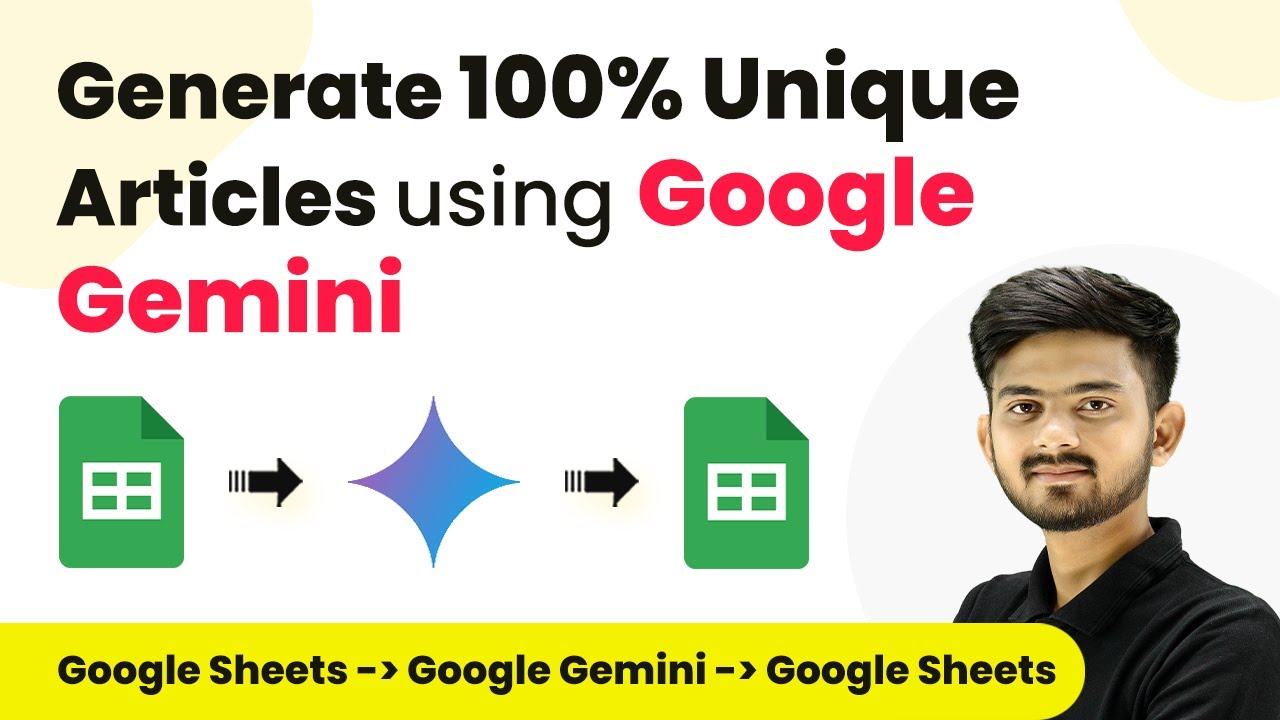
How to Generate 100% Unique Articles using Google Gemini with Pabbly Connect

Learn how to generate unique articles using Google Gemini and Pabbly Connect. Step-by-step tutorial on integrating Google Sheets with Google AI for automated content creation.

Watch Step By Step Video Tutorial Below


Accessing Pabbly Connect for Article Generation

To generate unique articles, first, you need to access Pabbly Connect. Start by opening your browser and navigating to Pabbly’s website. If you don’t have an account, you can sign up for free, which takes only a couple of minutes.

After signing in, click on the ‘Access Now’ button under Pabbly Connect. This action will direct you to the Pabbly Connect dashboard where you can create workflows that integrate Google Sheets and Google Gemini for automated article generation.


Creating a New Workflow in Pabbly Connect

In this section, you will create a new workflow within Pabbly Connect. Click on the ‘Create Workflow’ button. A dialog will prompt you to name your workflow; you might want to name it ‘Generate Unique Articles using Google Gemini’ for clarity.

After naming your workflow, select the folder where you want to save it. Once done, you’ll see two key sections: Trigger and Action. The Trigger will be set to Google Sheets, while the Action will be set to Google Gemini.


Setting Up Google Sheets as Trigger in Pabbly Connect

To initiate the workflow, you need to set Google Sheets as the trigger application in Pabbly Connect. Select ‘Google Sheets’ and choose the trigger event as ‘New or Updated Spreadsheet Row’. This will allow the workflow to trigger whenever a new article topic is added to your Google Sheet.

Next, you need to connect your Google Sheets account with Pabbly Connect. Copy the provided webhook URL and head to your Google Sheet. Go to the Extensions menu, select Add-ons, and then click on ‘Get Add-ons’ to find and install the Pabbly Connect Webhook extension.

  • Open the Pabbly Connect Webhook extension.
  • Set up the connection by pasting the webhook URL.
  • Specify the trigger column (e.g., Column A).

After configuring these settings, test the connection to ensure data can be sent from Google Sheets to Pabbly Connect.


Generating Articles with Google Gemini

Once the trigger is set, it’s time to configure the action to generate unique articles using Google Gemini. In Pabbly Connect, select ‘Google Generative AI’ as the action application and set the action event to ‘Generate Content’. This allows Pabbly Connect to use the article topic from Google Sheets to create a unique article.

To connect Google Generative AI, you’ll need to provide an API key. Log in to Google AI Studio, create an API key, and paste it back into Pabbly Connect. After connecting, set up the prompt for content generation by mapping the article topic from Google Sheets into the prompt field.

  • Select the model (e.g., Gemini Pro) for generating content.
  • Choose the method as ‘Generate Content’.
  • Save and send the request to generate the article.

After sending the request, you will receive a response containing the unique article generated by Google Gemini.


Updating Google Sheets with Generated Articles

The final step involves updating your Google Sheets with the newly generated articles. In Pabbly Connect, add another action step and select Google Sheets. Choose the action event ‘Update Cell Value’ to input the generated article back into your Google Sheet.

Connect your Google Sheets account again and specify the spreadsheet and the cell range where the article should be inserted (e.g., Column B). Map the row index dynamically so that it updates correctly as new articles are generated.

Select the correct spreadsheet (e.g., Unique Articles). Map the row index based on the trigger response. Submit the action to update the cell value with the article.

After executing this action, you will see the generated article appear in your specified Google Sheets cell, completing the automation process.


Conclusion

By following these steps, you can efficiently generate unique articles using Google Gemini and Pabbly Connect. This integration allows for seamless automation of content creation, saving you time and effort while maintaining high-quality outputs.

Ensure you check out Pabbly Connect to create business automation workflows and reduce manual tasks. Pabbly Connect currently offer integration with 2,000+ applications.